Configuring
If there is an existing uow config file, it will be migrated automatically to the locations used by cchdo.auth.
Warning
You must update cchdo.uow to the earliest version which also uses cchdo.auth, v1.4.1.
There are several ways the library can get the API key, choose the method most appropriate for your environment.
Local File Config
This method will create a config file that will persist between running programs that use this library. Since the location of this file is platform specific, you must use the tools provided to create/change this file.
Using Command Line
cchdo.auth is an executable module.
Once it is installed it can be run in a shell using:
python -m cchdo.auth
This has a single command apikey
python -m cchdo.auth apikey <key>
Replace the entirety of <key> with your CCHDO api key.
Using the API
You can create the config file from inside python.
>>> from cchdo.auth import write_apikey
>>> write_apikey("key")
Be sure to pass in the correct apikey as a string.
Environment Variable Config
The library will attempt to load the value of the envar CCHDO_AUTH_API_KEY.
$ CCHDO_AUTH_API_KEY=test python

Python 3.8.6 (default, Dec 18 2020, 05:24:40)
[GCC 8.3.0] on linux
Type "help", "copyright", "credits" or "license" for more information.
>>> from cchdo.auth import get_apikey
>>> get_apikey()
'test'
>>>
Warning
If present, the envar will take precedence over the local config file.
Google Colab Config
The API key can be made available to google colab notebooks by use of the built in secrets feature of google colab.
Open the secrets config by clicking on the key icon:
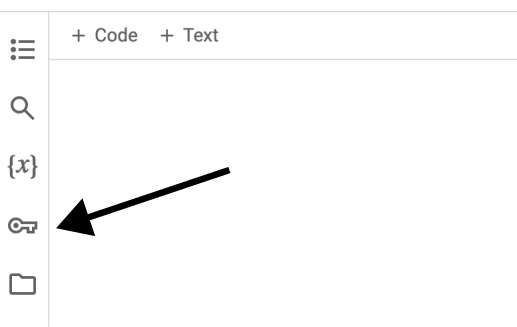
Secrets config menu location
Click the “+ Add new secret” button.
Set the secret name to CCHDO_AUTH_API_KEY.
Set the secret value to your api key.
If you do not click the “Notebook access” slider, the first time cchdo.auth tries to access the secret it will ask for permission.
Migration from vars.env
Warning
cchdo.auth can no longer access the env.vars file, you must migrate to the built in secrets method above.
The previous way of getting secrets into google colab involved creating a vars.env file in your google drive.
If you want to continue to use the API key contained within that vars.env, download vars.env to your computer and open it in a text editor to read the contents.
Follow the steps above to add the value of CCHDO_AUTH_API_KEY to a google colab secret.
The COLAB_ENV can be ignored.
Delete vars.env from both your computer and your google drive once you are done.